
AppleScript has been part of macOS for a long time, yet it is often underestimated. It is not a replacement for full app development, but it is excellent at connecting Finder, Mail, Calendar, browsers, the clipboard, and system UI into repeatable workflows. When AI handles summarization, rewriting, classification, text generation, and decisions, AppleScript can become the glue layer that puts those AI results back into the Mac desktop environment.
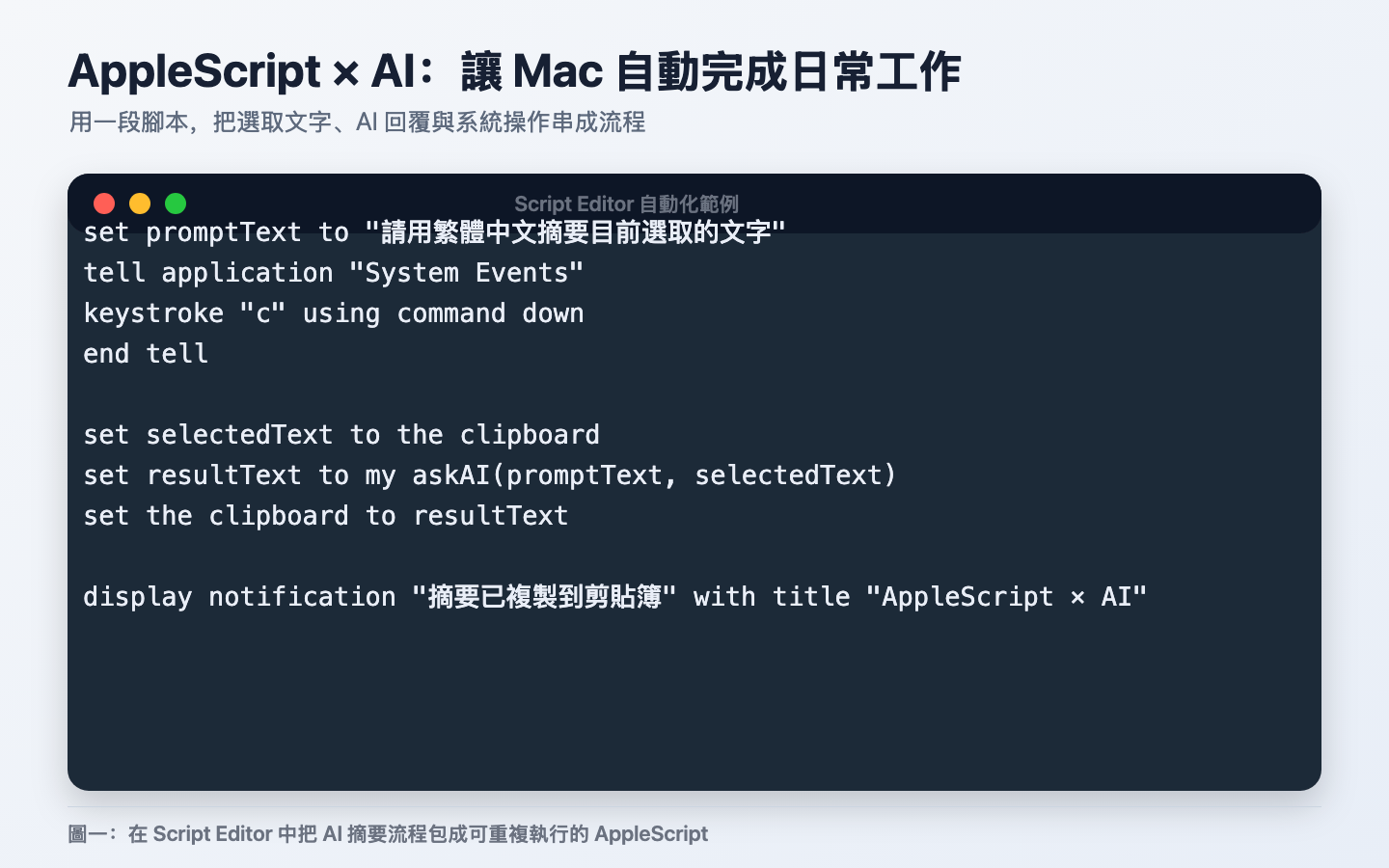
AI can think, but someone still has to press the buttons on the Mac
Many AI tools can now summarize, translate, classify, rewrite, and generate reports. The problem is that everyday work rarely ends at “getting a block of text.” We still need to paste the result back into a document, organize it into folders, send an email, create a calendar event, or repeat clicks inside software that only has a graphical interface.
That is where AppleScript becomes interesting again.
AppleScript is not new technology. It has existed since the System 7.1 era as Apple’s scripting language for the Mac. According to Apple’s documentation, it can directly control scriptable Macintosh applications and parts of macOS. At its core, a script is a set of written instructions used to automate repetitive tasks, integrate features across applications, or build more complex workflows.
In other words:
- AI handles “understanding and generation.”
- AppleScript handles “operating the Mac and its apps.”
- Humans set goals, review results, and decide whether an action should run.
Together, these three roles come much closer to a real everyday workflow than a chatbot alone.
What role is AppleScript good at?
Apple’s documentation describes macOS scripting as a way to automate complex, repetitive, and time-consuming tasks. It can interact with apps, processes, and the operating system. That makes it a good fit for the final mile of an AI workflow:
- Collect context: read the clipboard, selected text, the current file, or selected Finder items.
- Call external capabilities: send content to an AI model through shell scripts, CLI tools, or HTTP APIs.
- Apply results: paste AI-generated text back into place, create files, name folders, send email, or add reminders.
- Fill gaps with UI automation: for apps without complete APIs, use System Events to simulate keystrokes, menus, and parts of the UI.
AppleScript does not need to carry all of the logic itself. In practice, a layered approach is more stable:
- AppleScript: control macOS apps, the clipboard, notifications, windows, and permission interactions.
- shell / Python / Node.js: handle API calls, JSON, and complex data transformations.
- AI models: handle semantic tasks such as summarization, classification, editing, and structured output.
Permissions are the first trap
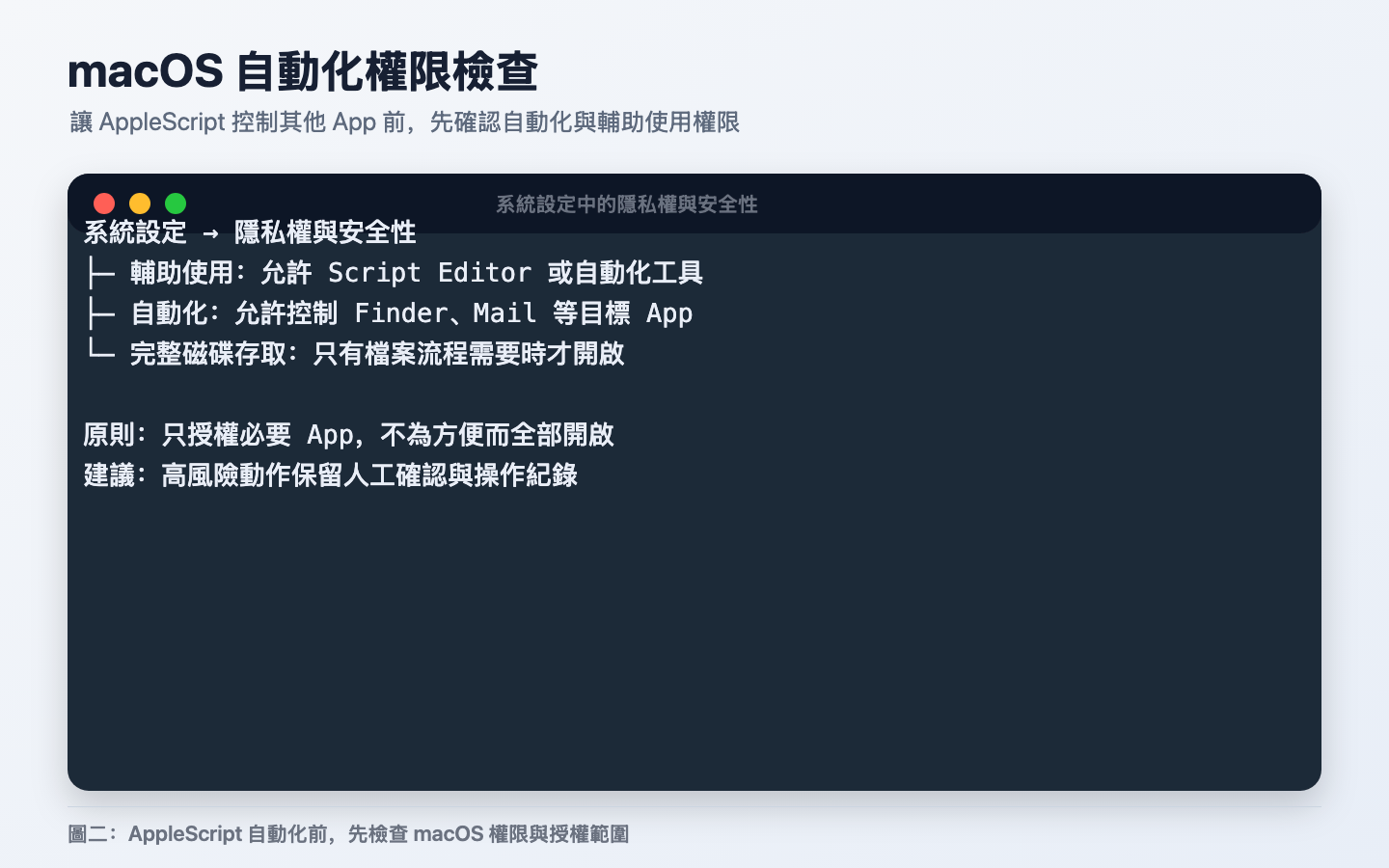
Before starting, you need to understand that macOS places security restrictions on automation. When AppleScript controls other apps, the system may ask for permission. When a script uses System Events to simulate keystrokes, click menus, or read UI elements, it may also require Accessibility permission.
You will usually encounter two kinds of settings:
- System Settings → Privacy & Security → Automation: allows a script, app, or tool to control other apps.
- System Settings → Privacy & Security → Accessibility: allows a tool to simulate keyboard or mouse input and read some UI elements.
This is also why I do not recommend starting with an “AI agent that fully controls the whole computer.” The broader the permissions, the higher the cost of a mistake. A safer way to begin is to keep the workflow small: collect text, send it to AI, put the result back, and expand the operational scope only when needed.
A minimum viable AI workflow
Here is a practical minimal workflow: the user selects text in any app, runs an AppleScript, the script copies the selected text, asks AI to summarize it, then puts the summary back on the clipboard.
set promptText to "請用繁體中文摘要以下文字,保留 3 個重點:"

-- 複製目前選取內容
tell application "System Events"
    keystroke "c" using command down
end tell

delay 0.2
set selectedText to the clipboard

if selectedText is "" then
    display dialog "剪貼簿沒有文字內容。請先選取一段文字再執行。" buttons {"OK"} default button "OK"
    return
end if

set resultText to my askAI(promptText, selectedText)
set the clipboard to resultText

display notification "摘要已放入剪貼簿" with title "AppleScript × AI"

on askAI(promptText, selectedText)
    -- 實務上不建議把 API key 寫在 AppleScript 裡。
    -- 這個範例從環境變數讀取設定:
    -- AI_API_BASE:OpenAI-compatible endpoint,例如 https://api.openai.com/v1 或 http://localhost:11434/v1
    -- AI_API_KEY:API key;本機模型若不需要可留空
    -- AI_MODEL:模型名稱,例如 gpt-4o-mini、llama3.1、qwen2.5 等
    set pythonCode to "
import json, os, sys, urllib.request

prompt = sys.argv[1]
text = sys.argv[2]
base = os.environ.get('AI_API_BASE', 'http://localhost:11434/v1').rstrip('/')
model = os.environ.get('AI_MODEL', 'llama3.1')
api_key = os.environ.get('AI_API_KEY', '')

payload = {
    'model': model,
    'messages': [
        {'role': 'system', 'content': '你是謹慎的工作助理。請使用繁體中文,輸出清楚、可直接貼上的內容。'},
        {'role': 'user', 'content': prompt + '\n\n' + text}
    ],
    'temperature': 0.2
}

req = urllib.request.Request(
    base + '/chat/completions',
    data=json.dumps(payload).encode('utf-8'),
    headers={'Content-Type': 'application/json'},
    method='POST'
)
if api_key:
    req.add_header('Authorization', 'Bearer ' + api_key)

try:
    with urllib.request.urlopen(req, timeout=60) as res:
        data = json.loads(res.read().decode('utf-8'))
    print(data['choices'][0]['message']['content'])
except Exception as exc:
    print('AI 呼叫失敗:' + str(exc))
    sys.exit(1)
"

    set shellCommand to "AI_API_BASE=${AI_API_BASE:-http://localhost:11434/v1} AI_MODEL=${AI_MODEL:-llama3.1} AI_API_KEY=${AI_API_KEY:-} /usr/bin/python3 -c " & quoted form of pythonCode & " " & quoted form of promptText & " " & quoted form of selectedText
    return do shell script shellCommand
end askAI
This example deliberately uses the OpenAI-compatible API format without locking itself to a single provider. You can point AI_API_BASE at a cloud service, an internal company gateway, or a local model service such as an Ollama / LM Studio compatible endpoint.
One thing to keep in mind: when AppleScript runs from Script Editor, it may not see environment variables that you export in Terminal. If GUI apps need to read them too, you can configure them with launchctl setenv. If you only run AppleScript from Terminal through osascript, normal export works.
For example:
# 本機模型範例:通常不需要 API key
launchctl setenv AI_API_BASE "http://localhost:11434/v1"
launchctl setenv AI_MODEL "llama3.1"

# 雲端 API 範例
launchctl setenv AI_API_BASE "https://api.openai.com/v1"
launchctl setenv AI_API_KEY "你的 API key"
launchctl setenv AI_MODEL "gpt-4o-mini"
For long-term use, I recommend moving the API call into a separate ask-ai CLI and leaving AppleScript responsible only for collecting text, calling the CLI, and putting the result back. That is easier to test and keeps complex logic out of AppleScript.
Recommended architecture: let AI return structured results instead of directly operating the computer
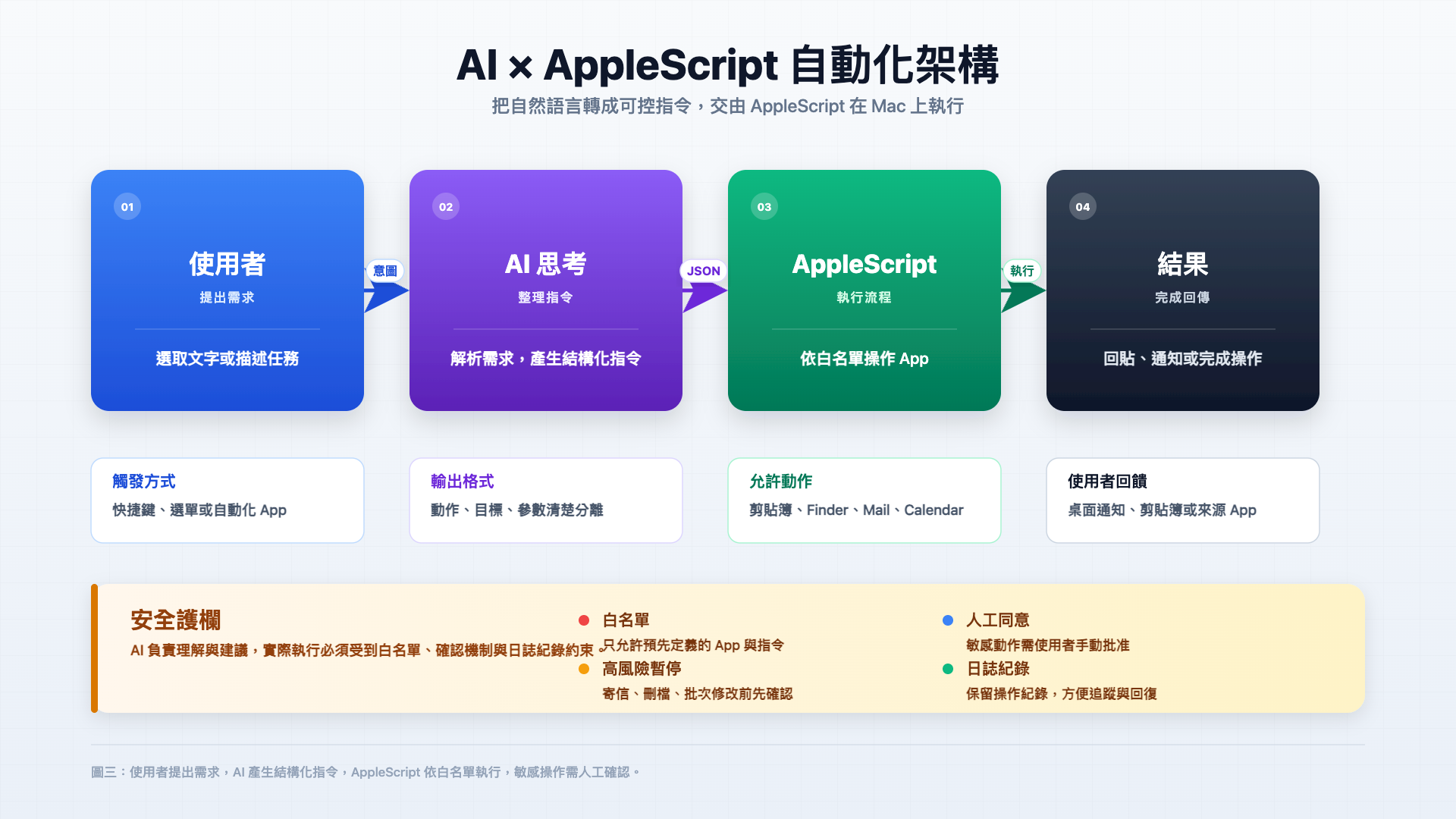
If all you need is a text summary, plain text is enough. But as soon as the workflow includes “what should happen next,” I recommend having the AI return JSON instead of letting it improvise freely.
For example, ask the AI to return:
{
  "action": "create_note",
  "title": "會議重點摘要",
  "content": "...",
  "confidence": 0.86,
  "needs_confirmation": true
}
After AppleScript or a backend program receives this JSON, it accepts only actions on an allowlist. If action is create_note, it creates a note. If it is rename_files, it shows a preview first. If it is send_email or delete_files, it requires human confirmation.
The goal is not to let AI generate arbitrary AppleScript and execute it immediately. A safer pattern is:
- Humans define the allowed actions.
- AI chooses among those actions and produces the required fields.
- AppleScript runs only known operations that can be reviewed and rolled back.
- High-risk actions always keep a human confirmation step.
Why not hand everything to an AI agent?
If an AI agent can already see the screen, click buttons, and operate the browser, why do we still need AppleScript?
My answer is predictability.
AI agents are good at ambiguous tasks, but every step can be affected by screen state, text interpretation, and model output. AppleScript behaves more like a fixed track: under the same conditions, it follows the same process in the same way. That kind of repeatability matters for tasks you perform every day.
So the practical division of work is:
- Let AI generate content or make classification decisions.
- Let AppleScript perform fixed, safe, traceable operations.
- Keep human confirmation at critical points such as sending email, deleting files, or batch renaming.
How should you choose between Automator, Shortcuts, AppleScript, and shell?
macOS has many automation tools, and AppleScript does not need to handle everything. A useful way to choose is:
| Tool | Good fit | Poor fit |
|---|---|---|
| Shortcuts | Quickly connecting system actions, Share Sheet workflows, and flows shared between mobile devices and Mac | Fine-grained control of older Mac apps, complex error handling, or heavy text processing |
| Automator | Existing Automator workflows, Finder batch processing, and Services menu actions | For new projects, Shortcuts or script-based approaches are usually better starting points |
| AppleScript | Controlling scriptable Mac apps, menus, windows, the clipboard, and UI | Complex data processing, network APIs, JSON parsing, or large application logic |
| shell / Python / Node.js | Calling APIs, processing JSON, organizing files, integrating CLI tools, and building testable logic | Directly controlling GUI apps or macOS application object models |
My recommendation:
- For a simple connected flow, try Shortcuts first.
- To control Finder, Mail, Calendar, Notes, and other Mac apps, use AppleScript.
- To call AI APIs, parse JSON, or process large amounts of text, use Python / Node.js / shell.
- For a stable long-term workflow, combine them: use Shortcuts as the entry point, AppleScript to control apps, and Python or Node.js to handle AI and data.
A few practical use cases
1. Email organization and reply drafts
Flow:
- Select the content of an email.
- AppleScript copies the text and sends it to AI.
- AI generates a summary and reply draft.
- AppleScript pastes the draft into the reply window.
- The user reviews it and sends it manually.
The key point here is to avoid having the script send automatically, at least in the first version. Keep human confirmation.
2. Batch renaming files in Finder
Flow:
- Select multiple files in Finder.
- AppleScript reads the filenames and some of their contents.
- AI generates naming rules or classifications.
- AppleScript shows a preview list.
- The user confirms before the files are renamed in a batch.
This works well for meeting notes, screenshots, contract drafts, and research material.
3. Summarize browser content into Notes
Flow:
- The user selects a passage in the browser.
- AppleScript copies the content.
- AI summarizes it into bullet points and action items.
- AppleScript opens Notes or another specified note-taking app.
- It saves the result with the source URL attached.
This type of flow works especially well as a keyboard shortcut or Script Menu item.
4. Turn meeting notes into action items
Flow:
- Give the meeting transcript or notes to AI.
- AI returns owners, deadlines, tasks, and risks.
- AppleScript places the tasks into Reminders, Calendar, or a project management tool.
- The user confirms before syncing them to the team.
This is a typical example of the value of AppleScript × AI: AI understands the text, and AppleScript puts the result into the Mac tools you use every day.
Security principles and considerations for enterprise environments
When AI and automation are combined, the most common problems come from permission boundaries rather than the technology itself. This matters even more in enterprise environments, where scripts may touch customer data, internal documents, contracts, email, and permission systems. Define the rules before expanding usage.
At minimum, I recommend these principles:
- Do not hard-code API keys in AppleScript: use environment variables, Keychain, a secrets manager, or an internal company proxy. Script files are easy to copy, sync, or accidentally share.
- Do not send sensitive data to unapproved model services: customer data, medical data, financial data, contracts, source code, and internal meeting content should all follow company policy. If you are unsure, use a local model or an internal gateway first.
- Require human confirmation for high-risk actions: including sending email, deleting files, moving large batches of files, batch renaming, submitting external forms, or modifying CRM / ERP / ticketing-system data.
- Have AI return structured data: instead of free-form text, ask for JSON fields such as
action,target,reason,confidence, andneeds_confirmation. - Let AppleScript execute only allowlisted actions: do not let a model generate arbitrary AppleScript and run it directly. A safer design has the model choose from predefined actions.
- Add dry-run and preview modes: before batch renaming, organizing files, or creating many tasks, show the list of planned operations for confirmation.
- Keep logs, but avoid storing complete sensitive content: record at least the time, operator, action, target summary, AI decision, and actual execution result. For sensitive content, log a hash, filename, or summary rather than the full text.
- Review Accessibility and Automation permissions regularly: revoke unnecessary permissions when someone leaves, a machine is replaced, a tool is retired, or a script is no longer used.
- Design for least privilege: if reading the clipboard is enough, do not control the entire app. If creating a draft is enough, do not send automatically. If one folder is enough, do not scan the entire disk.
- Treat AI as an adviser rather than the final executor: especially for money, legal matters, HR, customer commitments, and irreversible operations, human review should remain part of the process.
Conclusion
AppleScript looks old-fashioned, but it remains an extremely practical automation glue layer on macOS. AI has not made it obsolete. Instead, AI gives it a new role: bringing semantic capabilities into Finder, Mail, Calendar, Notes, browsers, and other desktop apps.
The useful goal is not to let AI operate the whole computer without limits. It is to put AI where it works best: understanding, summarizing, rewriting, and suggesting; then let AppleScript carry out predictable, reviewable, traceable Mac operations.
If your daily work involves constant copy-and-paste, file organization, summarization, or moving information between tools, AppleScript × AI can be a low-cost automation starting point that shows results quickly.
References
- Apple Developer Documentation Archive — AppleScript Language Guide: What Is AppleScript?
- Apple Developer Documentation Archive — Mac Automation Scripting Guide: About Mac Scripting
- Apple Developer Documentation Archive — AppleScript Overview